




Here we describe a basic-function Arduino library for Peggy 2.0.
Note: This article describes the new 0.3b version of the library, dated 7/8/2008.
The original article at this location has been archived here.
The Peggy 2.0 Arduino library brings Peggy 2.0 up to the level of having useful compatibility with the Arduino software environment: you can use high-level commands to control what shows up on the Peggy display. For example, the type of high-level command might be something of the form “SetPoint(x, y)” which would turn on the LED located at position (x,y) in the grid.
As we have discussed earlier, Peggy 2.0 is Arduino compatible in the sense that supports programming through a USB-TTL cable, using the popular Arduino software environment.
Note 1: You can also program Peggy 2.0 in the Arduino environment without the USB-TTL cable if you have an AVR ISP compatible programmer like the USBtinyISP. See this note on how to make that work.
Note 2: Peggy also still supports programming with an AVR ISP interface using the GNU AVR toolchain; please see the original article about programming Peggy 2.0 if you are using that approach.
First things first: This is not (by any stretch) intended as a full Arduino tutorial; there are plenty of very good examples out there already, and other lists of resources to point you in the right direction. Still, if you have done some programming, this may well be enough of a guide to get you up and running.
Let’s get started.
Hardware:
- A Peggy 2.0, built and working, with at least some LEDs in it.
- A USB-TTL cable. (Or other compatible programmer– see note above.)
Software:
- Download the Arduino Software from this page.
- Download the latest version of the Peggy2 library from our github repository.
First, install the latest version of the Arduino software (0015 or later) if you don’t already have it. Uncompress the Peggy2 library, and place it in the hard/ware/library/ directory where your Arduino software is installed. (If you’ve put it in the right place, it will be amongst a few other libraries in similar folders there, with names like “EEPROM” and “Wire.”) If you were using an older version of the Peggy2 library, archive and save your old version just in case– some code changes are necessary to use the new version.
Now open up the Arduino program itself. From the menu, select File>Sketchbook>Examples>Library-Peggy2>peggy2_firstdemo. Click the “Verify” button to compile the program. (It’s the one with the “play” symbol at the upper left of the window.) In a few moments, it should indicate that it’s done compiling.
Now, to hook up to the Peggy. If using the USB-TTL cable, it hooks up to your computer and to the connector (J3) on the left side of the Peggy, by the chips. Note that the wires on the cable are color-coded: the end where the green wire goes is marked “green” on the circuit board.
Next, we’ll actually send the demo program to the board. You need to select the right hardware from the Tools>Board menu. For most Peggy 2.0 kits, which use the ATmega168 microcontroller, select “Arduino Diecimila or Duemilanove w/ ATmega168” (the exact wording varies between versions of the Arduino software). If you have a newer Peggy 2.0 that shipped with an ATmega328 or if you have upgraded your Peggy to use the ATmega328, select “Arduino Duemilanove w/ ATmega328.” (Peggy 2.0 is not an Arduino Diecimila or Duemilanove, but the architecture is compatible.
Then, to actually program the board, press the “Upload to I/O Board” button at the top of the Arduino program window (it’s the other “right arrow” button). If it works, you may see Peggy do some erratic things while the program is being uploaded, typically about 15 seconds, and then it will start to run the program. If it does not work, make sure that Peggy has power and is turned on. You may also wish to play with the serial port selection under the Tools menu.
Example programs
There are now 12 demo programs included with the library:
peggy2_bounce
Added in version 0.21b. Simulates a bouncing ball– simple real time animation. Also, you can “kick” the ball by using an input button.
peggy2_16level
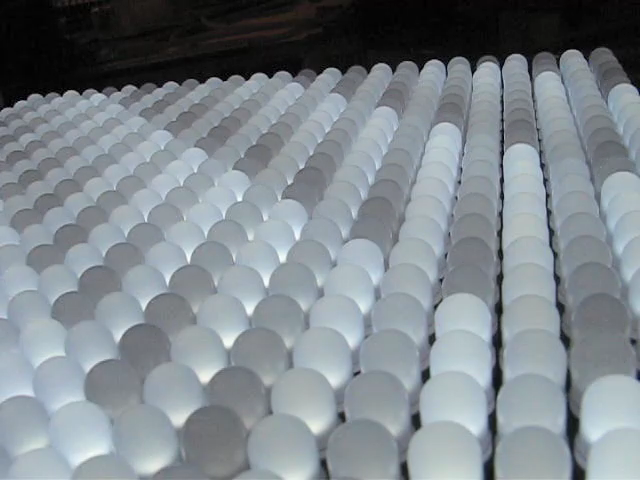
Added in version 0.21b. Draws stripes with 16 levels of gray, which slowly march across the display. It looks like this (Embedded video follows):
peggy2_Cube
Added in version 0.3b. Rotating cube using the new drawing routine. Code contributed by v3ga.
peggy2_GetPoint
Added in version 0.3b. Demonstrates reading out the state of a dot in a frame buffer.
peggy2_Line
Added in version 0.3b. Demonstrates drawing a line using Line(a,b,c,d)
peggy2_MoveToLineTo
Added in version 0.3b. Demonstrates drawing a line using MoveTo and LineTo
peggy2_static
Added in version 0.21b. Draws random static across the screen like an old analog TV without an antenna. Will look great on any Peggy 2.
peggy2_fewdots
Added in version 0.21b. An actually minimalist example, it just draws a few dots by hand and displays them.
peggy2_firstdemo
Light up pixels at the four corners of the screen and demonstrate very simple “live” animation– programming where the dots go in real time.
peggy2_FrameAnim
Generates four (very simple) frame buffers and slowly switches between them to animate. In our example, we’re just drawing four rectangular stripes and switching between them. However, there’s no reason that you couldn’t use this to switch between multiple full-frame images for simple animation within the constraints of available memory.
peggy2_FrameGray
This uses the same four frame buffers as peggy2_FrameAnim, but switches quickly between them, spending a variable amount of time at each– which produces four-bit gray scale stripes.
peggy2_minimal
Not quite as minimal as it could be, this example is a great place to start playing. We initialize a single frame buffer array, fill it with dots, and display it. This is pretty similar to the default firmware that ships on the Peggy, but now written with the Peggy2 Arduino library.
Gory Details::Working with the library
The easiest way to get started is to take one or more of the above examples and bend it to your will. However, we will also here go over what the different functions are and how to use them.
Importing the library
Before you get started using any of the Peggy2 functions or data structures, you need to include the library in your Arduino “sketch” by adding the following line at the top:
#include <Peggy2.h>
You can add this line semi-automatically by selecting it from the menu: Sketch>Import Library>Peggy2
Creating a frame buffer
A frame buffer is an object in memory (RAM) that holds one monochrome image that can be displayed on the Peggy. In order to display things on the Peggy, you need to allocate at least one frame buffer. (Internally, the data in a frame buffer–four bytes per row– is arranged as an array of 25 long integers. However, you don’t actually need to know that in order to use them.)
If we’re doing an animation that has four frames that we switch between, we might want to use four frame buffers. Or, if we’re drawing live on the screen, we might only want one frame buffer, which we could keep drawing in. In any case, you can have one or several different frame buffers (limited by the amount of available RAM), each of which needs to have a different name. Normally, frame buffers are declared (created) at the beginning of the program, right after the #includes.
A new frame buffer is declared by using the keyword “Peggy2.” To make a new frame buffer named Fred, we would call
Peggy2 Fred;
If you wanted four frame buffers (named frame1, frame2, frame3, and frame4), you could create them like so:
Peggy2 frame1;
Peggy2 frame2;
Peggy2 frame3;
Peggy2 frame4;
Hardware initialization
Separately from creating the frame buffer, we also have to make sure that the Peggy hardware is ready for us. Do this by putting the command XXXX.HardwareInit(); (where XXXX is the name of any one of your frame buffers) within your setup() section.
The setup() section is a part of the Arduino Sketch that’s only run once at the beginning; the other half– the loop() section that comes after it is repeated forever.
Your setup() section might look like this, for example:
void setup()
{
frame1.HardwareInit();
}
That’s it for initialization: make (at least) one frame buffer and do the hardware initialization. What remains are functions and procedures that can be executed at your discretion later in the setup()section or in the loop() section.
RefreshAll();
In order to draw the contents of a frame buffer on the Peggy, you can issue a command of the form
FrameBufferName.RefreshAll(unsigned int refreshNum),
which takes an (unsigned) integer argument that says how many times to draw it on the screen. For a fast, single update of your frame buffer named Fred, you might put the following in your loop() section:
Fred.RefreshAll(1);
while for a more complex arrangement, you might have
frame1.RefreshAll(2);
frame2.RefreshAll(8);
which would draw both frames frame1 and frame2 on the Peggy. By the persistence of vision effect, you would see both frames frame1 and frame2 at the same time, drawn on top of each other. And, since frame2 is drawn for longer, (with the same brightness) it would appear brighter than the image in frame1.
Clear();
You can completely zero out an existing frame buffer named Fred by issuing the command
Fred.Clear();
Example usage:
if (n > 100)
frame2.Clear();
SetPoint
The SetPoint function is used to turn on a given pixel of a given frame buffer. The syntax is
FrameBufferName.SetPoint(unsigned short x, unsigned short y).
As before, this function acts on a specific frame buffer. The (x,y) coordinates are the usual type for computer graphics: origin in the upper left corner, with column/row location given by the ordered pair of unsigned integers, which should in this case be in the range 0-24.
Example usage, to turn on pixel located at (x,y) = (4, 10), in a frame buffer named Ginger:
Ginger.SetPoint(4,10);
See the code examples for additional usage demonstrations, particularly peggy2_firstdemo.
ClearPoint
The ClearPoint function is used to turn off a given pixel of a given frame buffer. The syntax is
FrameBufferName.ClearPoint(unsigned short x, unsigned short y).
Very much like SetPoint, above.
Example usage, to turn off pixel located at (x,y) = (4, 10), in a frame buffer named Ginger:
Ginger.ClearPoint(4,10);
See the code examples for additional usage demonstrations.
WriteRow
The WriteRow function allows you to write an entire row of a given frame buffer. The syntax is
FrameBufferName.WriteRow(unsigned short row, unsigned long rowdata).
This is a more advanced routine that may possibly be useful in some circumstances. It writes an entire row of data to the buffer at a time, where each bit from position 0 to 24 represents the LED position in the row. WriteRow is fast, but may not actually save time once you format your data to take advantage of that. Under most circumstances, it is more straightforward and reasonably efficient to use the WritePoint function instead.
Example usage, to turn on pixel located at (x,y) = (4, 10), in a frame buffer named Ginger:
Ginger.WriteRow(10, 16);
Why? It’s row 10, and the LED 4 is given by 2^4 = 16.
Second example, to turn on pixels 3-18 in row number 10:
Ginger.WriteRow(10, (unsigned long) 65535 << 3);
WritePoint
The WritePoint function allows you to turn a point on or off logically. The syntax is
BufferName.WritePoint(unsigned short x, unsigned short y, unsigned short Value); .
If Value equals one (or is any nonzero value), then the point at coordinates (x,y) will be turned on in the buffer named BufferName. Otherwise– if Value equals zero– then the point at coordinates (x,y) will be turned off in the buffer named BufferName.
A very powerful routine, since you can turn on or turn off a single point depending on the value of a variable or outcome of a comparison.
Example usage, to turn on a pixel located at (x,y) = (2, 10), in a frame buffer named Ginger:
Ginger.WritePoint(2, 10, 1);
Second example, to turn off a pixel located at (x,y) = (4, 10):
Ginger.WritePoint(4, 10, 0);
GetPoint
The GetPoint function allows you to check if a point is on or off.
uint8_t BufferName.GetPoint(unsigned short x, unsigned short y); .
Returns 1 if the pixel at coordinates (x,y) is on, or 0 if the pixel is off at coordinates (x,y) , in the buffer named BufferName.
Example usage, to see if the pixel at (x,y) = (2, 10), in a frame buffer named Ginger, is on or off:
unsigned int j;

j = Ginger.GetPoint(2, 10);
Line
The Line function allows you to draw a line between two points. The syntax is
BufferName.Line(unsigned short x1, unsigned short y1, unsigned short x2, unsigned short y2); .
Draw a line from (x1,y1) to (x2,y2) in the buffer named BufferName.
Example usage, to draw a line from (0,0) to (24,24), in a frame buffer named Ginger:
Ginger.Line(0,0,24,24);
Second example, to turn off a pixel located at (x,y) = (4, 10):
Ginger.WritePoint(4, 10, 0);
MoveTo and LineTo
These functions allow you to move around an (invisible) cursor and use it to selectively draw.
BufferName.MoveTo(unsigned short x, unsigned short y); .
Move (invisible) cursor to position from (x,y) in the buffer named BufferName. Used in conjunction with LineTo to make lines where you want them.
Example usage, to draw a line from (0,0) to (24,24) and from (0,24) to (24,0), in a frame buffer named Ginger:
Ginger.MoveTo(0,0);

Ginger.LineTo(24,24);

Ginger.MoveTo(0,24);

Ginger.LineTo(24,0);
BufferName.LineTo(unsigned short x, unsigned short y); .
Drag line from current cursor position to new position. Update cursor position as well. Move cursor to position from (x,y) in the buffer named BufferName. Used in conjunction with MoveTo to make lines where you want them.
Example usage, to draw a line from (0,0) to (24,24) and from (0,24) to (24,0), in a frame buffer named Ginger:
Ginger.MoveTo(0,0);

Ginger.LineTo(24,24);

Ginger.MoveTo(0,24);

Ginger.LineTo(24,0);
Caveats
While this library does make it easier to control Peggy, it is far from perfect, not particularly fast or efficient, and you can probably write a better one. If you do have upgrades, improvements, code, bugs, or suggestions to contribute, we’re listening. We’ll also be working on some expanded features and new code of our own; You can expect this library to evolve over time. If you would like to contribute to the project and/or keep up with the latest developments, please join us at https://github.com/evil-mad/peggy.

Yes yes YES! You rock Windell.
Why not start putting code in git or svn (Google Code?)
Would make things feel more open source and contributable…
Good idea! But… well… err… ummm… I’ve never actually done that.
Here is a start– anybody want to help me along with that process?
—
Windell H. Oskay
drwho(at)evilmadscientist.com
http://www.evilmadscientist.com/
It looks good to me… Now to save up and buy a Peggy 2.0 to help out :)
I posted in the Issues section of the google code with some changes! I’d love to be a contributor.
In the Issues section of the google code I posted a simple program for testing the buttons using the Peggy library.